
Documentation
First Analysis in VT Planner
Step-by-step guide to create a VT Planner project, save a building, configure an elevator setup, run the first analysis, and review results.
This guide summarizes the shortest path to get a first verifiable result in VT Planner.
Step by Step
- Go to
Projectsand selectCreate project. - Fill in
Project nameand, if needed,Description. - Open the project and go to the
Buildingtab. - Complete
Building basics: name, type, upper floors, and basements. - Review
Floor table: entrances, heights, and population by floor. - Select
Save building. - Go to
Elevator setupsand create aFixed setup. - Complete
Setup details,Group definition,Motion profile,Doors, andPassenger transfer. - Save the configuration with
Save setup. - Go to
Analysis, choose the analysis mode, and selectRun calculationorRun simulation. - Open
Resultsto review history, the report, and PDF export.
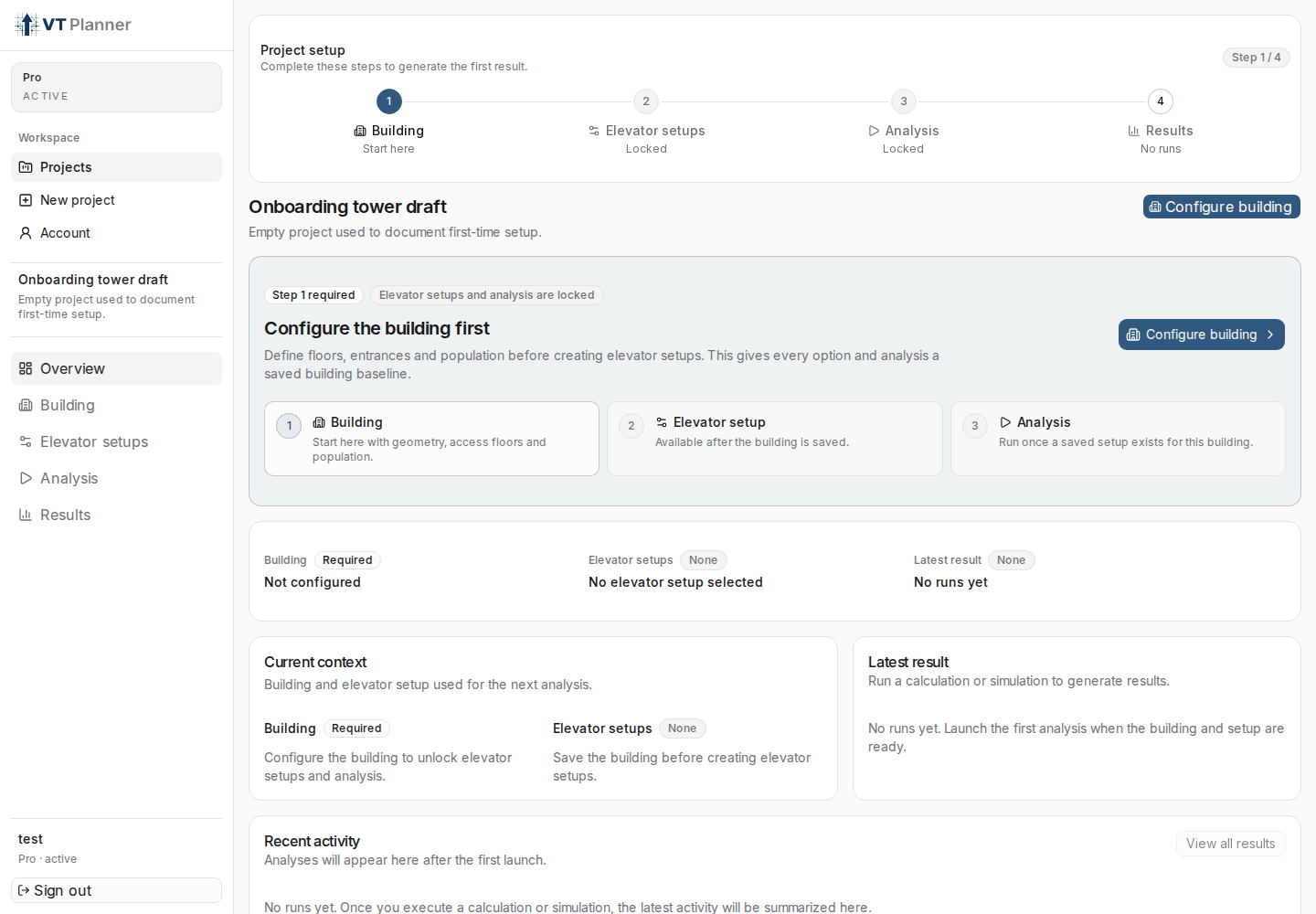
Unlock Rules
VT Planner unlocks the flow in stages:
- without a saved building,
Elevator setupsandAnalysisremain blocked; - without a saved elevator setup, you cannot run an analysis;
- if you change the building after saving a setup, that setup may be marked as
Outdated; - if an analysis is
queuedorrunning, you must wait for it to finish before launching another.
Expected Result
When finished, you should see:
- a saved building with
Building savedstatus; - an elevator setup with
Setup readystatus; - a run in
Run history; - an embedded report if the run completed successfully;
- the
Export PDFbutton available for supported results.